How to Render Realistic Diamonds and Gemstones
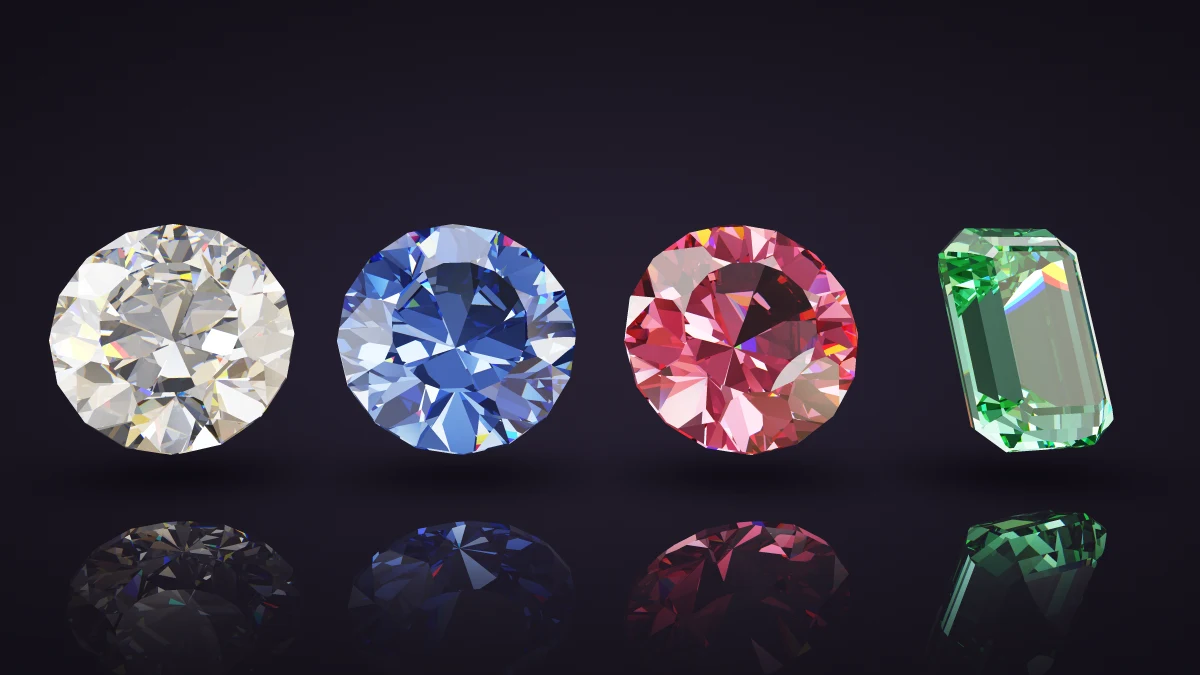
A realistic gemstone depends on four things: accurate cut geometry, the right optical values, lighting with contrast and enough light bounces.
Three effects make a stone look alive: brilliance (white light returned to the eye), fire (flashes of spectral color) and scintillation (sparkle as the stone, light or viewer moves).
Refractive index and dispersion values
The refractive index (IOR) controls how strongly light bends. Dispersion controls how much it splits into colors. These are typical gemological values:
| Stone | Refractive index | Dispersion |
|---|---|---|
| Diamond | 2.42 | 0.044 |
| Moissanite | 2.65 – 2.69 | 0.104 |
| Cubic zirconia | 2.15 – 2.18 | 0.058 – 0.066 |
| Sapphire and ruby | 1.76 – 1.77 | 0.018 |
| Emerald | 1.57 – 1.58 | 0.014 |
Render programs express dispersion in different ways, for example as an Abbe number or a strength slider. Check your software's documentation before entering a value.
Start with accurate geometry
Use correctly proportioned cuts with flat facets and crisp facet edges. Smooth shading must be off for stones, or the facets will blur together. A stone with wrong angles can look dull even with perfect material settings.
Give colored stones depth
Color in a transparent stone comes from light being absorbed as it travels inside. Use volume absorption rather than painting the surface. Larger stones and longer light paths then look deeper in color, as they do in life. Emeralds often contain visible inclusions, so a completely flawless one can look artificial.
Light for contrast
A stone mostly shows reflections of its surroundings. An evenly white environment makes it look flat. Combine large soft lights, small bright lights and dark areas. The dark areas create the pattern that reads as sparkle.
Use suitable render settings
- Allow many transmission and reflection bounces. Too few can leave black patches inside the stone.
- Use enough samples to resolve small highlights.
- Apply denoising gently, because it can smear fine facets.
- Review the image at full size.
Common mistakes
- Using the same refractive index for every stone
- Adding so much dispersion that a diamond looks rainbow-colored
- Letting the stone surface overlap the metal setting
- Over-sharpening or adding artificial star glints
The image at the top of this guide is a 3D render that uses refractive indices close to the values above, with color created by absorption. To prepare your own stones, see the CAD file checklist.